

Ever sent an email that starts with “Hi *|FNAME|*“?
Doh! Let’s make sure that never happens again.
Here’s how to test your Mailchimp merge tags properly — so you can be confident your emails are personalised and professional.
Step-by-Step: Preview Merge Tags in Mailchimp
- Go to Preview Mode
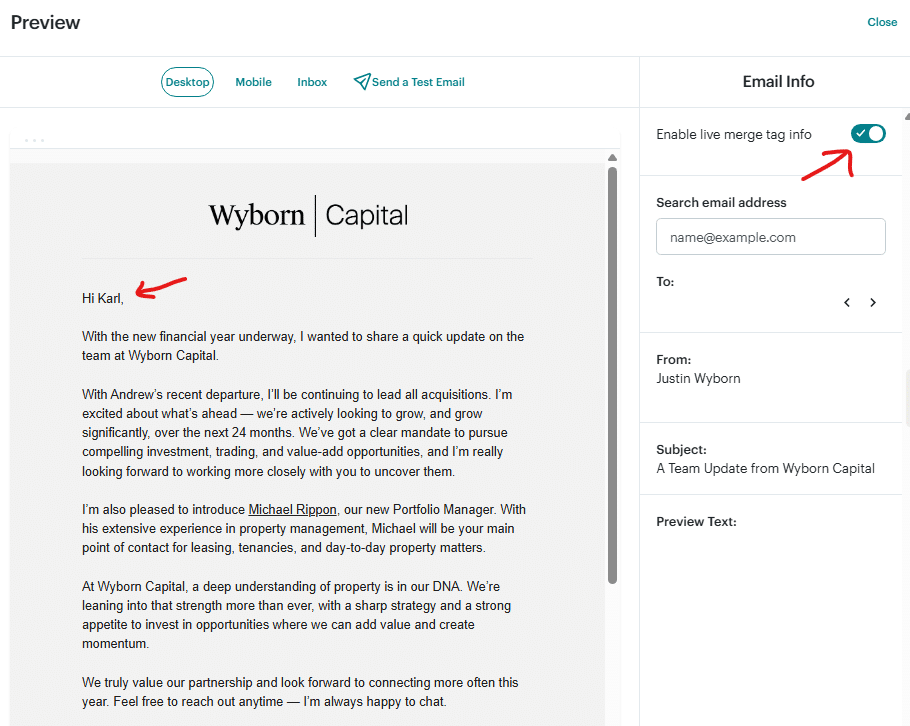
In your Mailchimp campaign, click the **Preview** button at the top. - Enable Live Merge Tag Info
On the right-hand panel, toggle **“Enable live merge tag info”**. This pulls in actual contact data — so if you’re using `*|FNAME|*`, you’ll see the recipient’s real first name (e.g. “Hi Karl”) in the preview. - Check It Over
Scroll through your email and ensure everything looks correct — particularly if you’re using fallback values or custom fields.
Why This Matters
Personalisation works — but only when it works correctly. Previewing with live merge tag data ensures your message feels personal and relevant, not like a mass send. It’s a small step that can make a big difference to your open and click-through rates.
Need help improving the look and performance of your Mailchimp emails? Get in touch.

You must be logged in to post a comment.